
If you’ve been coding for a while, you know this dance.
You’re deep in a feature branch, files half-edited, and someone reports an urgent bug on another branch. So you git stash, switch branches, fix the bug, switch back, git stash pop, and try to remember where you were. If you’re lucky, nothing breaks. If you’re not, you’ve got a merge conflict with your own work and a headache.
For a long time I just accepted that this was the cost of doing business. Then I started using git worktrees, and honestly, it changed how I work every day.
Let me show you what they are and the one use case that made me a believer.
What is a git worktree?
Normally, one Git repository gives you one working directory. You can only have one branch checked out at a time. To look at a different branch, you have to switch — and that switch replaces all your files with that branch’s version.
A worktree breaks that rule. It lets you check out another branch into a completely separate folder, while your main folder stays exactly as it is.
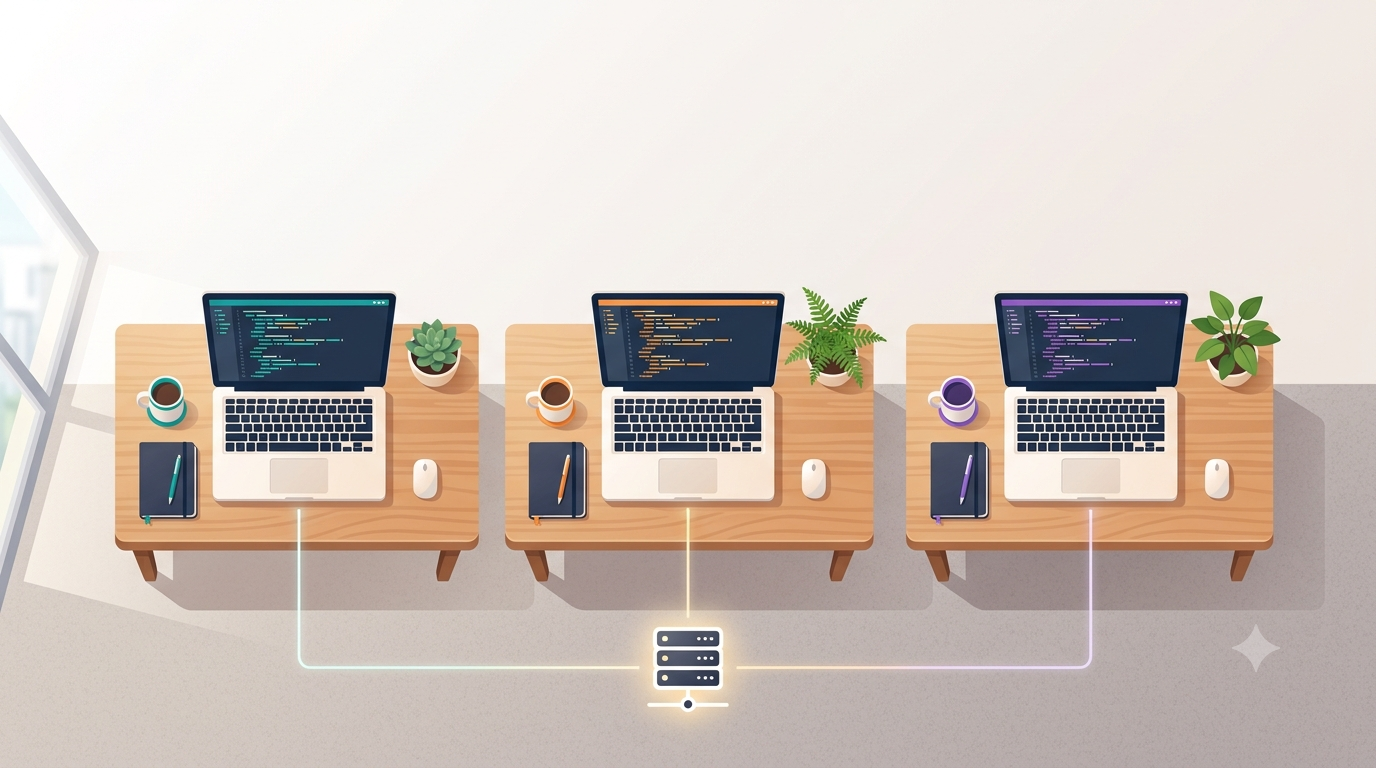
Think of it like your desk. Normally you have one desk, and to work on a different task you have to clear everything off and lay out the new task. With worktrees, you get multiple desks for the same project — each one has a different branch laid out, and you just roll your chair over to whichever one you need. Nothing gets cleared away.
The important part: all these worktrees share the same underlying repository — the same history, the same commits, the same remotes. You’re not cloning the project again. You’re just giving different branches their own space to live.
Creating your first worktree
Say you’re working in a project and you want to open your feature-login branch in its own folder. From inside your repo:
git worktree add ../myproject-login feature-loginThat’s it. Git creates a new folder called myproject-login right next to your main project folder, with the feature-login branch checked out inside it. Your main folder hasn’t changed at all.
Want to start a brand-new branch and give it a worktree at the same time? Use -b, just like you would with
git checkout:git worktree add -b hotfix-header ../myproject-hotfixThis creates a new branch called hotfix-header and a new folder for it in one step.
To see everything you’ve got open at any time:
git worktree listYou’ll get something like:
/home/you/myproject 09f7675 [master]
/home/you/myproject-login 09f7675 [feature-login]
/home/you/myproject-hotfix 09f7675 [hotfix-header]
Three branches, three folders, all live at once.
The use case that sold me: debugging two branches side by side
Here’s where worktrees stopped being a neat trick and became something I reach for constantly.
Some bugs are hard to find because they’re differences between two branches. Something works on main but breaks on your feature branch, and you can’t figure out why. The code looks the same. The logic looks the same. But one works and one doesn’t.
With normal Git, hunting this down is miserable. You check out one branch, note how it behaves, switch to the other, note how it behaves, switch back, and try to hold both versions in your head. Every switch wipes the slate, so you’re comparing from memory.
With worktrees, I just open both branches at the same time:
git worktree add ../myproject-main main git worktree add ../myproject-broken feature-checkoutNow I have both versions of the app running side by side — two folders, two terminals, two dev servers if I need them. I can put them literally next to each other on screen. I can diff a specific file across the two folders. I can run the same request against both and watch exactly where the behavior splits.
The bug that used to take me an hour of branch-juggling? I can often see it in a few minutes, because I’m comparing two real things instead of one thing and a memory.
This is also why I run my worktrees through Supacode (supacode.sh) — a terminal built around this exact idea, where each task gets its own worktree and its own real terminal session, side by side in one window. It makes managing several branches at once feel natural instead of manual. Worth knowing it’s a macOS app, so if you’re on Linux or Windows, plain git worktree in any terminal still gets you 90% of the benefit — the feature is built into Git itself, no extra tools required.
Cleaning up when you’re done
When you finish with a worktree, don’t just delete the folder. Tell Git about it:
git worktree remove ../myproject-hotfixNow, a small thing that tripped me up at first — and that I want to save you from. If you still have uncommitted changes in that worktree, Git will refuse to remove it:
fatal: '../myproject-hotfix' contains modified or untracked files, use --force to delete itThis is Git protecting you from throwing away work by accident. If you’re sure you don’t need those changes, add --force:git worktree remove --force ../myproject-hotfix
And if you already deleted a worktree’s folder the manual way (we’ve all done it), Git will still think it exists until you clean up the bookkeeping:git worktree prune
That reclaims any worktrees whose folders are gone.
Two rules that will save you confusion
There are exactly two things that surprised me early on. Knowing them upfront will save you a “why isn’t this working” moment.
1. You can’t check out the same branch in two worktrees. If main is already open in one worktree and you try to open it in another, Git stops you:
fatal: 'main' is already used by worktree at '/home/you/myproject'This makes sense once you think about it — two folders editing the same branch would step on each other. Each worktree needs its own branch. For the side-by-side debugging trick, that’s fine, because you’re comparing two different branches anyway.
2. Worktrees live outside your project folder. I put mine right next to the main folder (../myproject-login) rather than inside it, so they never get picked up by the main project’s tooling or accidentally committed. Keep them as siblings, not children.
Why this is worth learning
Git worktrees aren’t a flashy feature. There’s no AI, no plugin, nothing to install. It’s just a part of Git that most people never discover — and once you do, git stash-ing your way between branches starts to feel like doing dishes with one hand tied behind your back.
If you take one thing from this: next time you need to compare two branches, don’t switch back and forth. Open both. Look at them together. The answer is usually sitting right there between them.
Try it on your current project today:
git worktree add ../yourproject-test some-other-branchThen roll your chair over and take a look.
Let’s connect
I’m Rabra — I write about web development, Linux, Git, and the tools that make building software less painful, with a focus on helping developers and students in Ethiopia level up. Everything I do lives at rz-codes.com, and you can follow @rzcodes on YouTube, Telegram, TikTok, and X.
Your turn: what’s your worst git stash horror story — and has a worktree ever saved you? Tell me in the comments. 👇